Saving gifts
How to save a gift from a shopping website
On a supported Android installation, you can share a product from another app into Little Gift List. In a browser or on a computer, copy its product link and paste it into Import Gifts.
Choose how you're saving a gift
Step by step
Open the product page in a supported Android browser or shopping app and choose Share.
Choose Little Gift List from the Share menu. Scroll to All apps if you cannot see it.
Review the gift capture screen, or Import Gifts if you shared a photo or multiple links.
Check the recipient, occasion and product details before choosing Save gift.
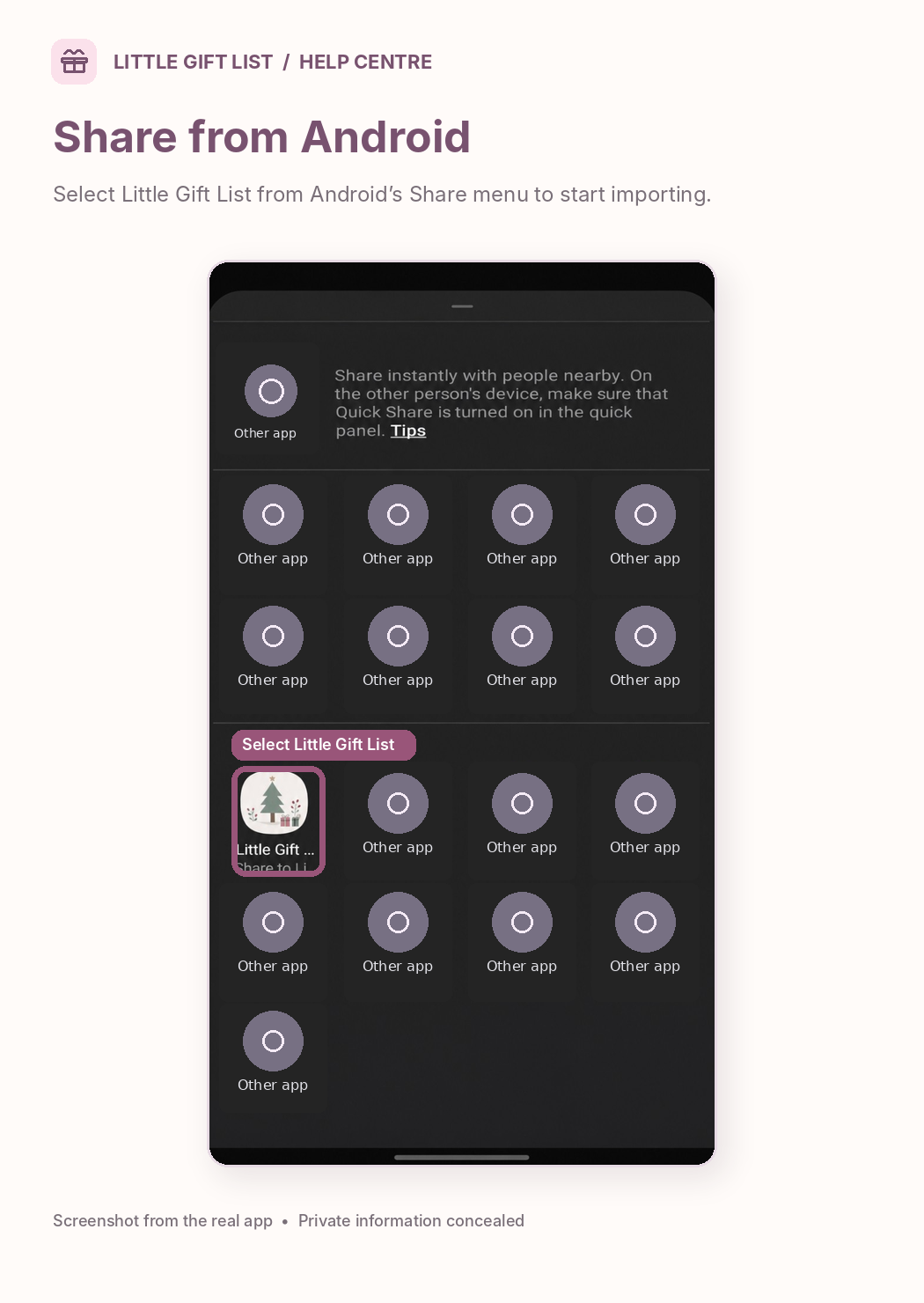
What you should see
The reviewed gift is saved to the chosen person, occasion or Gift Inbox. If you do not see it, check whether the capture was completed.
If it doesn't work
Help tip 1
Little Gift List isn’t in the Android Share menu: use Copy link and paste into Import Gifts instead.
Help tip 2
Some retailer or affiliate links hide product details. Keep the working link and edit missing information manually.
Help tip 3
A share sheet only proves Little Gift List is available as a target; always confirm the gift appears in your plan.
Ready to try it?
Open Import GiftsPrivate planning pages may ask you to sign in or use your existing guest session.
Still need a hand?
Tell us what you were trying to do. You can send a support request without signing in.
Contact support