Saving gifts
How to import several gifts at once
Bring product links or gift ideas into the Import Helper, review the queue, then save the ones you want.
Step by step
Open Import Gifts in Little Gift List.
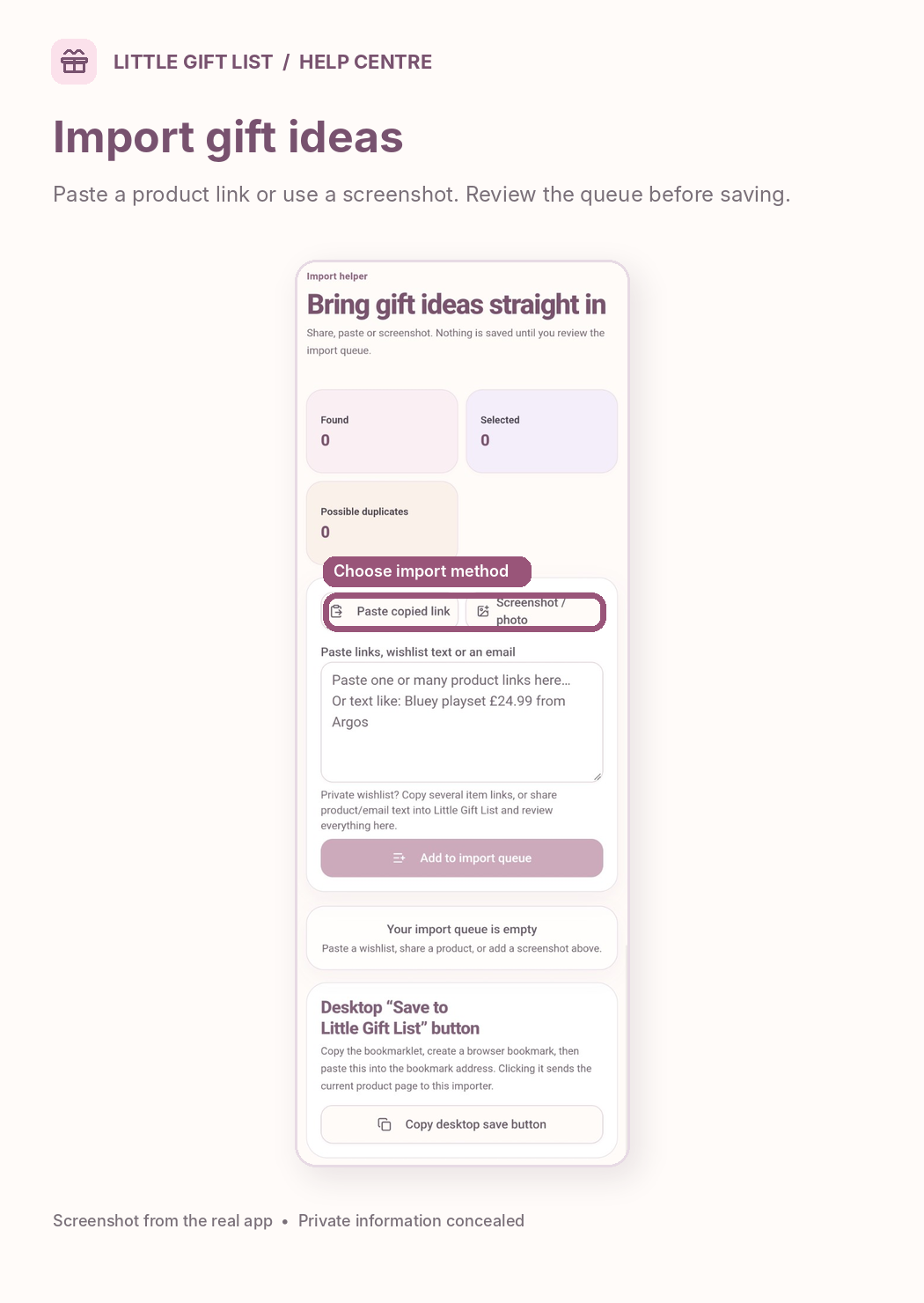
Choose Paste copied link or Screenshot / photo, depending on what you are importing.
Paste one or more product URLs, wishlist text or an email extract where supported.
Select Add to import queue and review the detected items, duplicate warnings and any missing details.
Decide which items to keep and where they belong, then complete the import. Pasting alone does not save gifts.
What you should see
Your chosen items appear in their destination after you confirm the import. Items waiting in the queue are not saved gifts.
If it doesn't work
Help tip 1
If a link returns incomplete information, check the retailer product page and correct the item before saving.
Help tip 2
If an import appears twice, check the possible-duplicates indicator before submitting again.
Help tip 3
If image recognition misses an item, enter its name and details manually.
Ready to try it?
Open Import GiftsPrivate planning pages may ask you to sign in or use your existing guest session.
Still need a hand?
Tell us what you were trying to do. You can send a support request without signing in.
Contact support